129.168.o.1 — Why This Address Doesn’t Work (And What You Actually Need)


If you’ve landed here after typing 129.168.o.1 into your browser and getting nowhere, you’re dealing with one of the most common router login typos out there. The good news: once you know what went wrong, fixing it takes about ten seconds.
Where This Typo Comes From
Two small errors, both incredibly easy to make:
The first two digits get swapped — “129” instead of “192.” It happens more often than you’d expect, especially when typing on autopilot or copying an address you half-remember from somewhere.
Then there’s the letter “O” standing in for the number “0.” On a phone keyboard or even a regular one, they sit close together and look almost identical depending on the font. Autocorrect doesn’t help either — it has no idea you’re typing an IP address and might “fix” it into something even further from correct.
Put those two together and your browser sees a string it can’t interpret as a network address at all, which is why the page just refuses to load.
What You Were Probably Trying to Type
The address you’re most likely after is 192.168.0.1 — one of the most widely used default gateway addresses across router brands like TP-Link, D-Link, Netgear, and several others. It’s practically the “default of defaults” in the router world.
That said, not every router uses this address. Some common alternatives include:
- 192.168.1.1
- 192.168.1.254
- 192.168.2.1
Which one is correct for your specific router depends entirely on the brand and model you own.

How to Find Your Router’s Real Address (Without Guessing)
Rather than cycling through possibilities, check your router itself first. Most units have a label on the bottom or back with the exact default IP, along with a default username and password. This is genuinely the fastest way to get the right information — faster than any search result.
If the sticker’s worn off or missing, here’s a quick way to check from a connected device:
On Windows: Open Command Prompt and type ipconfig. Look for “Default Gateway” — that’s your router’s login address.
On Mac: Go to System Settings > Network, click your active connection, and check the router/gateway field.
On a phone: Go into your WiFi settings, tap the connected network, and look for the gateway or router address listed there.
Logging Into the Router
Once you’ve got the correct address:
- Make sure your device is connected to that router’s WiFi (or plugged in via Ethernet).
- Open a browser and type the IP address directly into the address bar — not into a search engine.
- Enter the login credentials. If you haven’t changed them before, try “admin” for both username and password as a first guess, or check the router’s label.
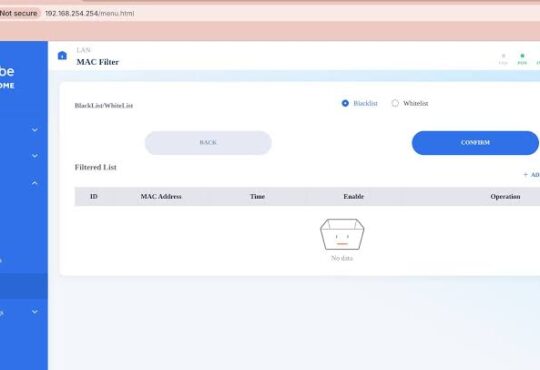
- From the dashboard, you can update your WiFi name and password, manage connected devices, set up parental controls, or check for firmware updates.
If the Page Still Won’t Load
A few things worth trying:
- Double-check you typed the numbers correctly this time — it’s an easy mistake to repeat without noticing
- Make sure you’re on the router’s own network, not a guest network or a neighboring signal
- Restart the router (unplug for 30 seconds, then plug back in)
- If you’re locked out entirely, use the reset button on the back — hold it for about 10-15 seconds to restore factory settings (this wipes any custom configuration, so use it only as a last resort)
After You’re In
It’s worth changing the default password once you’ve logged in successfully. Default credentials are widely known and published online, so leaving them unchanged is an easy way to leave your network exposed to anyone nearby.